
Count your baby’s kicks with one tap
Tap whenever you feel your baby move, or time how long 10 kicks take. Baby Kick Counter saves each tap on your phone and shows them over time.
- Free
- No account
- Stays on your phone
- Works offline
A 26-second demo: tapping three movements, then a count to 10 with a timer running, its summary of 10 kicks in 11 minutes, and the History and Trends tabs. The data is an example.

Tap whenever your baby moves
The Movements side is one big button you can tap all day, whenever you feel a kick, roll or flutter.
Nothing to start or stop
Each tap is saved with the time. Undo takes back a tap you didn’t mean.
Today at a glance
A timeline under the button shows when today’s movements were tapped.
Or time a count to 10
Swipe to Count to 10 when you want to see how long 10 kicks take. The screen stays on while you count.
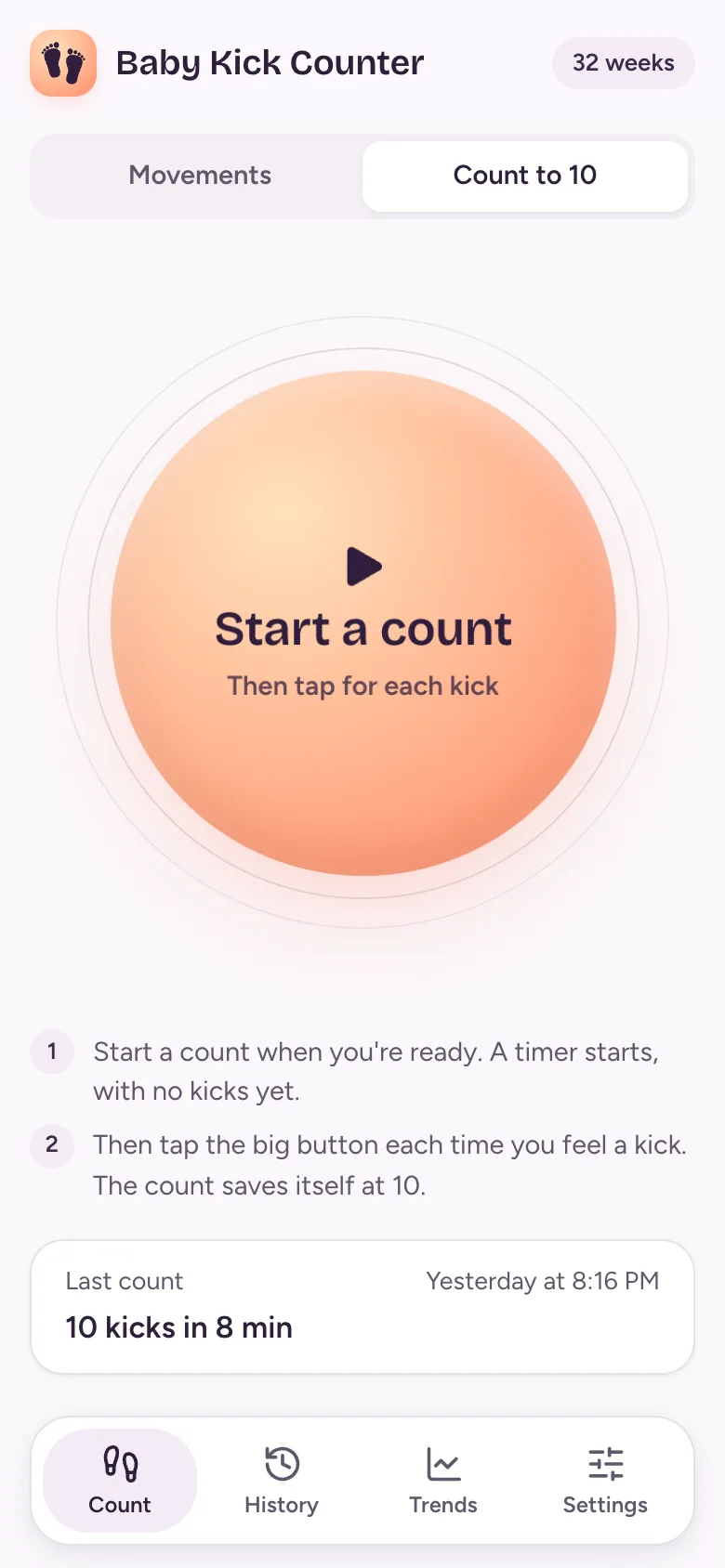
Start a count
Tap Start a count when you’re ready. A timer starts, with no kicks yet.
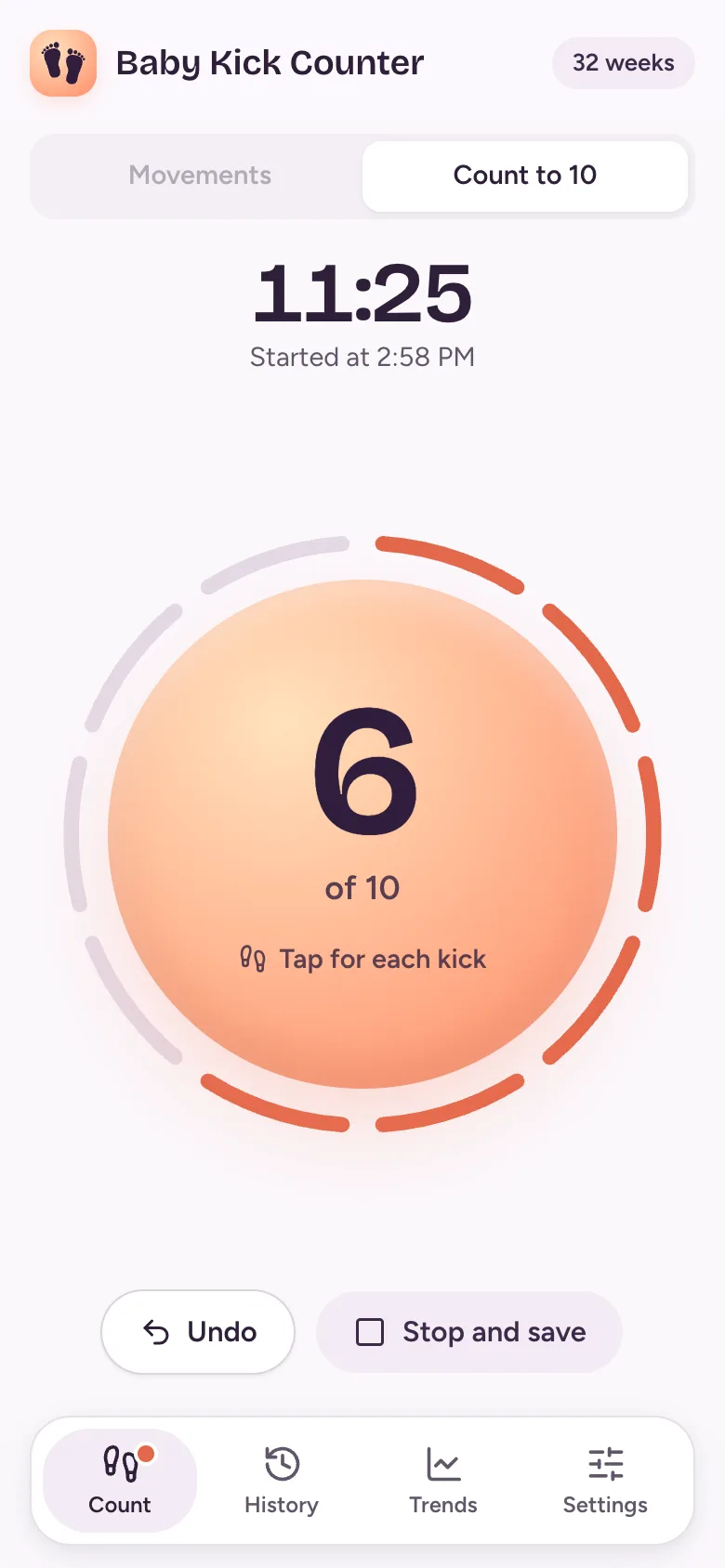
Tap for each kick
Each tap adds one kick. Undo takes back a tap you didn’t mean.
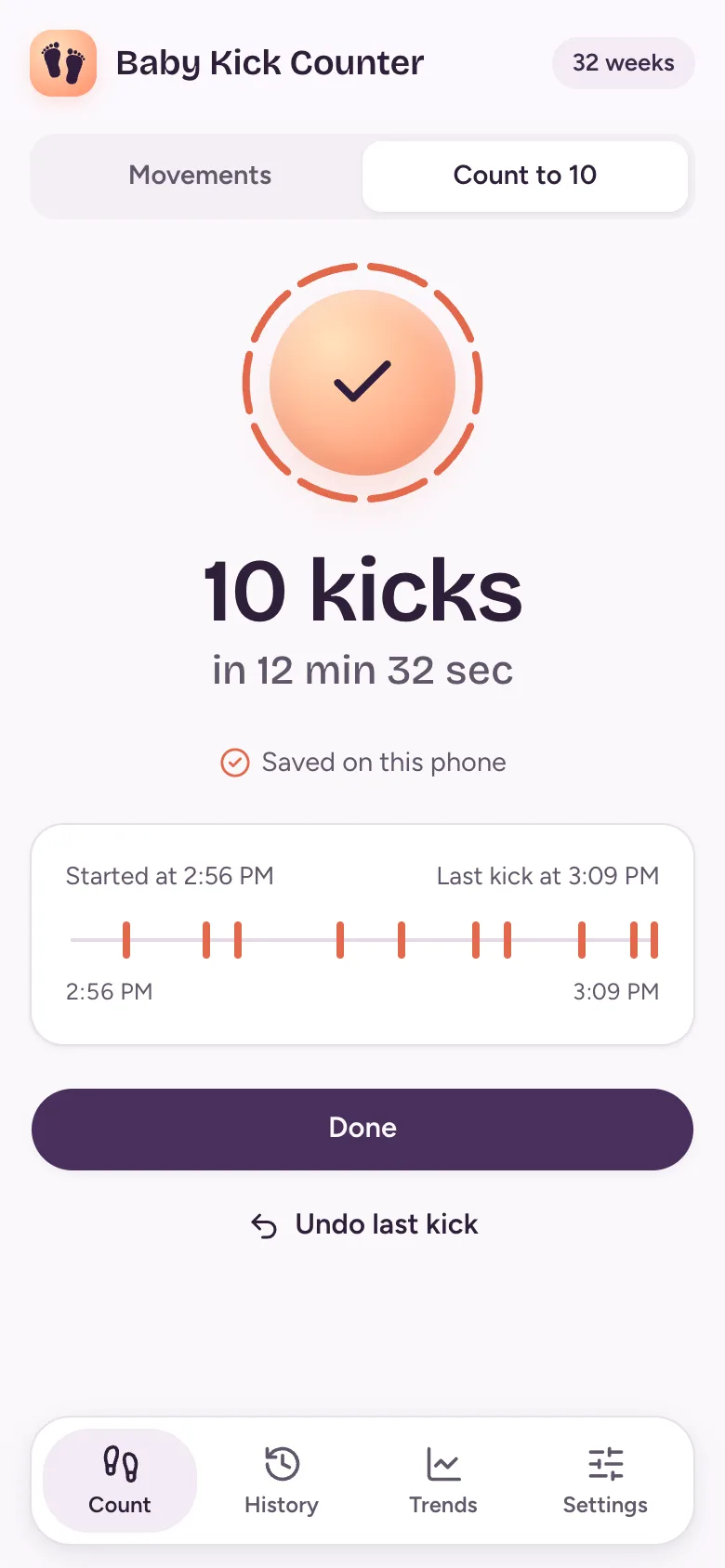
It saves at 10
At 10 kicks the count saves itself and shows how long it took. If you stop earlier, it’s saved too.


See it all over time
Movements and counts go into the same History and Trends, so you can look back whenever you like.
History
Every day you tapped, newest first. Open a day to see the time of each movement and kick.
Trends
Your days side by side, the hours your taps fall in, and how long each count took, for the last 2 weeks, 4 weeks or all time.
Weeks of pregnancy
Add your due date and each day shows how many weeks along you were.


Free, and nothing leaves your phone
There’s no server behind Baby Kick Counter. What you tap is saved on your phone, and we never see it.
Free
There’s nothing to pay and no ads.
No account
There’s nothing to sign up for. Open it and start tapping.
Nothing sent to us
Your movements and counts are never sent to us or anyone else, and there are no tracking cookies.
Backups you keep
Save a backup file in Settings and restore it on a new phone. Restoring never changes what’s already there.
Easy to use at night
It’s built for counting in bed with the lights off.
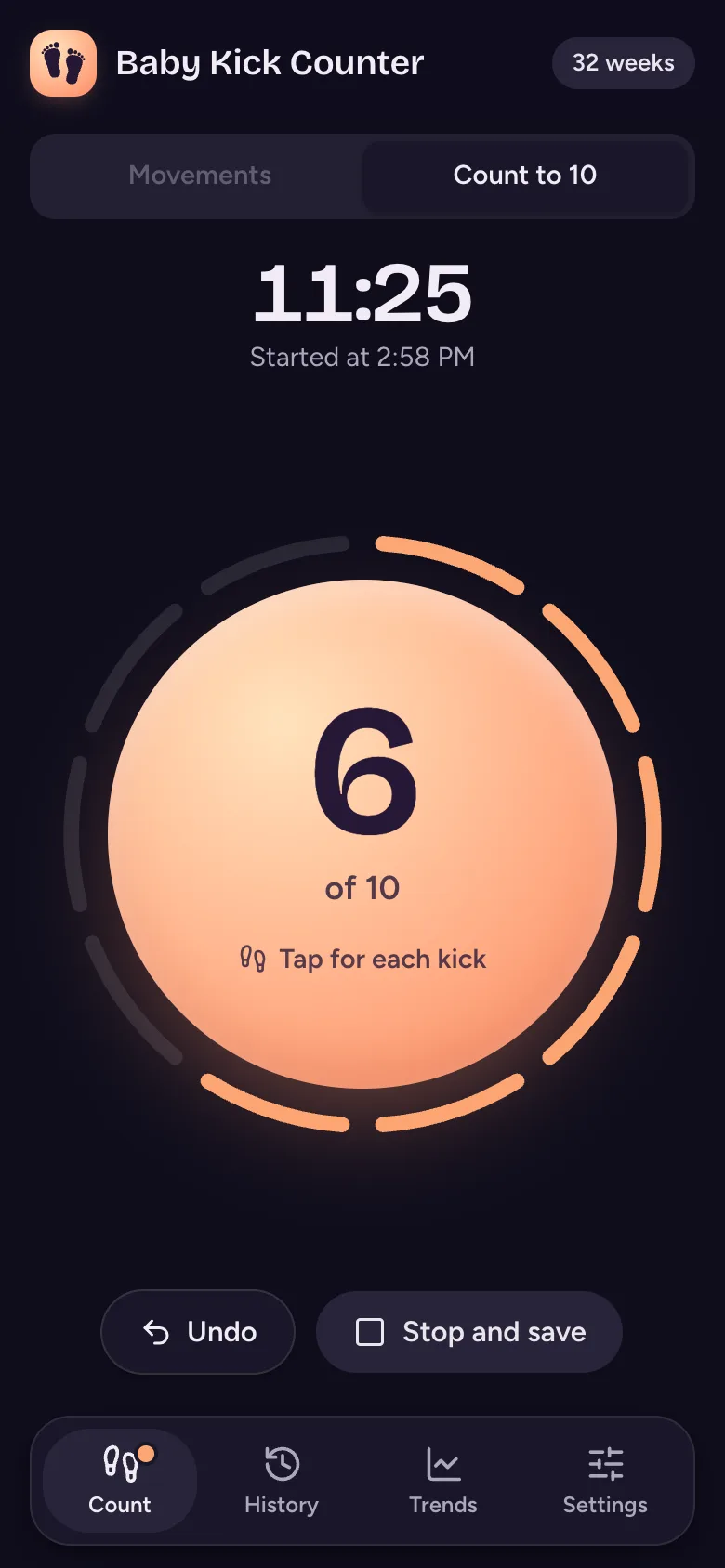
Dark when your phone is
It follows your phone’s dark mode, as in the two screens here.
The screen stays on
Your phone won’t dim or lock during a count, so you can put it down beside you.
Made for screen readers
Every button is labelled, and each kick is read out as you tap, such as “3 of 10”.
Works offline
Once it’s on your home screen, it works without an internet connection.
In your language
It starts in your phone’s language, and you can choose from 48 in Settings.
Add it to your home screen
Baby Kick Counter isn’t in an app store. You add it straight from your browser, and it opens like any other app.
iPhone and iPad
- Open babykickcounter.app/count in Safari.
- Tap the Share button. If you can’t see it, tap ••• first.
- Choose Add to Home Screen. You may need to scroll to find it.
- Open Baby Kick Counter from your home screen.
Android
- Open babykickcounter.app/count in Chrome.
- Tap Install the app when it appears. If it doesn’t, open Chrome’s menu and choose Add to Home screen.
- Open Baby Kick Counter from your home screen.
Add it before you start. A browser can clear what a website stores, and on iPhone what you tap in Safari doesn’t move across to the home screen app.
Questions
Is it really free?
Yes. There’s nothing to pay, no ads and no account.
Does it tell me if something’s wrong?
No. Baby Kick Counter keeps a record of what you tap and shows it over time. It doesn’t label anything as good or bad, and it doesn’t give medical advice.
What’s the difference between Movements and Count to 10?
Movements is for tapping whenever you feel your baby move, all through the day. Count to 10 times how long it takes to feel 10 kicks. Use either or both; they share the same History and Trends.
Where is my data kept?
Only on your phone. There’s no account, and nothing you tap is sent to us or anyone else.
Do I need an internet connection?
Only to add it to your home screen. After that it works offline.
Can I move to a new phone?
Yes. In Settings, save a backup file, then restore it in the app on your new phone. Restoring adds what isn’t there yet and leaves the rest alone.
What happens if I remove the app?
Everything you’ve tapped is deleted with it, because it’s only on your phone. Save a backup now and then if you want to keep it.
Which languages is it in?
48, listed at the bottom of this page. It starts in your phone’s language, and you can change it in Settings.